FastShop is a /shop menu split into categories. Players click an item, pick an amount and buy it. Each item can be priced in Vault money, PlayerPoints or Shards, can sell back to the shop, and can run commands on purchase, so a category can sell crate keys or ranks as well as blocks.
You don't have to edit YAML to build it. /shop admin lets you create categories, add the item you're holding, set prices and drag items into order, all from menus. Stock limits, supply and demand pricing, sales and discount codes are there when you want them and off until you turn them on.
Permissions#
| Permission | Lets a player | Default |
|---|---|---|
shop.admin | Open the shop editor and the transaction log. | OP |
shop.reload | Run /shop reload. | OP |
fastshop.admin | Add items with /shopitem set. | OP |
fastshop.sell | Use /sell and /sellgui. | OP |
blazez.updates | Get the update alert on join. | OP |
Buying from /shop needs no permission unless a category or item has its own. The older donutshop.admin and donutshop.sell nodes still work in place of the fastshop ones.
Warning
fastshop.sell is OP-only by default. If your players should sell with /sell and /sellgui, grant it to them, for example /lp group default permission set fastshop.sell true.
Commands#
| Command | What it does | Permission |
|---|---|---|
/shop | Opens the shop. | None |
/shop opencategory <category> | Opens one category directly. Useful from NPCs or other menus. | None, or the category's permission |
/shop code <code|clear> | Applies a discount code to your next purchase, or removes it. | None |
/sell | Sells the item in your hand to the shop. | fastshop.sell |
/sellgui | Opens a menu that sells everything you put in it. | fastshop.sell |
/shop admin | Opens the shop editor. | shop.admin |
/shop transactions | Opens the log of recent buys and sells. | shop.admin |
/shopitem set <category> <price> [sell-price] | Adds the item in your hand to a category. | fastshop.admin |
/shop reload | Reloads the config and every category file. | shop.reload |
/sell and /sellgui also answer to /fastshop:sell and /fastshop:sellgui, so they keep working if another plugin takes the short names.
Configuration#
| File | What it controls |
|---|---|
config.yml | Categories, the main menu and buy menu layouts, item lore, messages, economy settings and optional features. |
categories/<name>-shop.yml | The items in each category, with prices and per-item options. |
license.yml | Your license key and update alerts. |
data/ | Stock, demand, discount code uses and restock subscriptions. |
Categories#
Each category is a section under categories in config.yml:
categories:
  end:
    rows: 3
    icon:
      display-name: '&aᴇɴᴅ'
      type: END_STONE
      lore:
        - '&fClick to view the end shop'
    inventory-name: '&8sʜᴏᴘ - ᴇɴᴅ'
    layout:
      - 'XXXXXXXXX'
      - 'OOOOOOOOO'
      - '<XXXXXXX>'
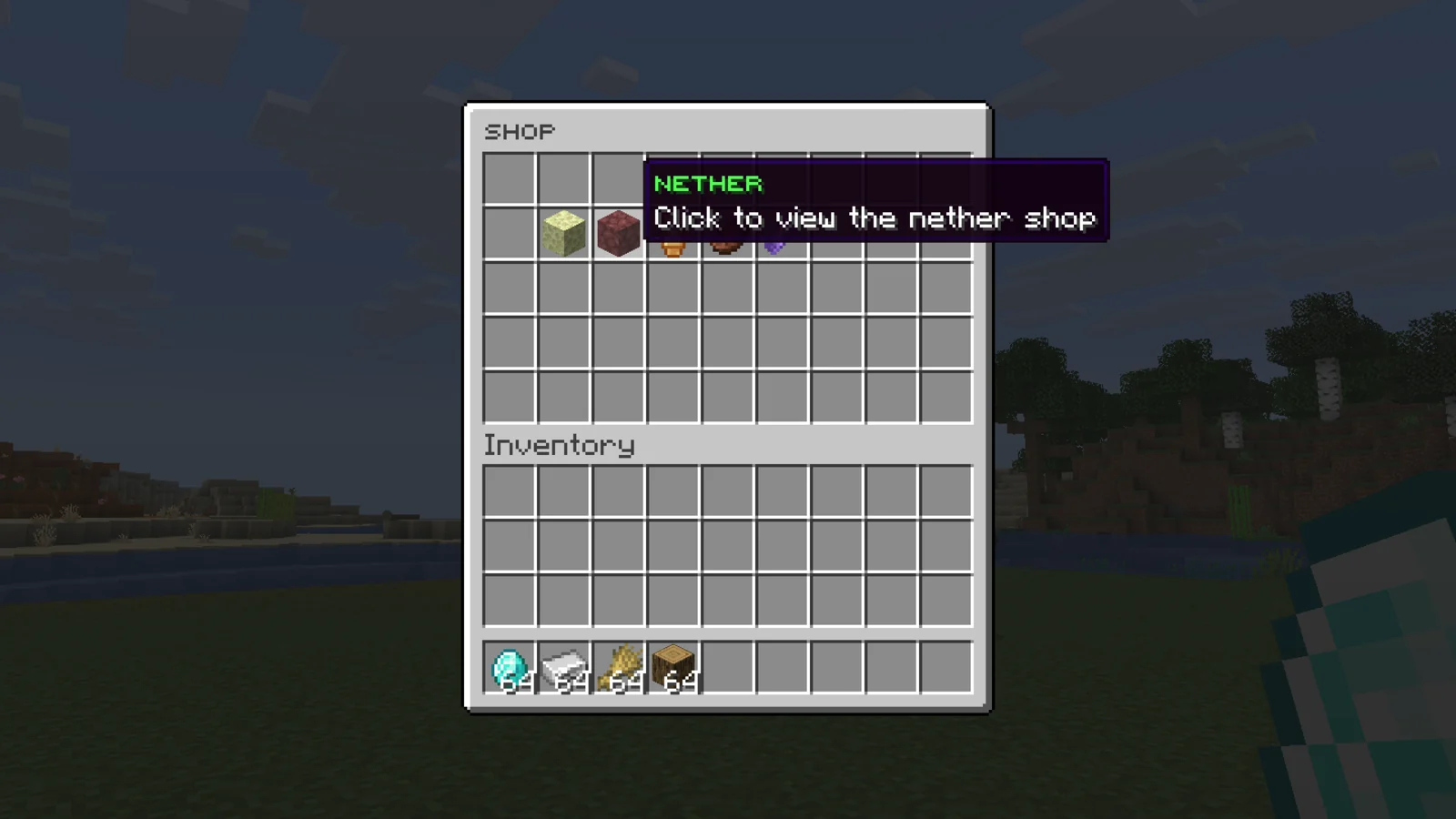
In layout, O is an item slot, X is filler, and < and > are page arrows. Add permission: <node> to lock the category, and a commands list to make its icon run commands instead of opening a menu. The main menu uses the same kind of layout under main-inventory, where each O holds a category icon. By default the main menu is 3 rows, with the 5 default categories centered in the middle row.
Items#
items:
  totem-of-undying:
    purchase-inventory-title: 'ʙᴜʏɪɴɢ ᴛᴏᴛᴇᴍ ᴏғ ᴜɴᴅʏɪɴɢ'
    category: 'gear'
    icon:
      type: TOTEM_OF_UNDYING
    price: 1250
max-stack: 1| Key | What it does |
|---|---|
price | Buy price per item. |
sell-value | Price the shop pays when a player sells one. Leave it out for buy-only items. |
economy | vault (default), player_points or shards. |
max-stack | Most a player can buy at once. |
commands | Commands run on purchase, with %player%. Use it for keys, ranks or kits. |
required-inventory-space | Free slots the player needs before buying. |
Every item's lore gets the lines from shop-item-lore, where %price% shows 160,000,000 and %formatted_price% shows 160M.
Economies#
Vault is the default. For PlayerPoints, set economy: player_points on the item. playerpoints-economy-name sets the currency name in messages, and leaving it empty uses PlayerPoints' own name. For Shards, set economy: shards. FastShop takes and gives shards with the commands in shards-give-command and shards-set-command, reads the balance from shards-unformatted-placeholder, and shows it as shards-economy-name in shards-economy-color.
Optional features#
Everything under features in config.yml is off by default.
| Feature | What it adds |
|---|---|
stock | Per-item buy and sell limits that refill over time. |
dynamic-pricing | Prices that rise when players buy and fall when they sell. |
sales | Timed discounts on a category or item, and discount codes. |
restock-notifications | A player who finds an item sold out can ask to be told when it refills. |
bulk-buy | Buttons to buy 1, 16, 64 or a full stack in one click. |
item-permissions | Per-item buy-permission and sell-permission. |
search | A search button in each category that filters items by name. |
transaction-log | Records every buy and sell, viewed with /shop transactions. |
Stock is set per item:
    stock:
      buy-limit: 64
      sell-limit: -1
      refill-seconds: 3600
-1 means no limit, and refill-seconds: 0 means the stock never refills on its own.
For dynamic pricing, add dynamic-pricing: true to an item. Its price then moves by elasticity for each unit traded, stays between floor-percent and ceiling-percent of the base price (default 0.5 and 2.0), and drifts back by decay-percent every decay-seconds (default 2% every 300 seconds).
Sales and codes go under features.sales:
  sales:
    enabled: true
    scheduled:
      summer-food:
        target-category: food
        percent: 25
        start: '2026-07-01 00:00'
        end: '2026-07-07 23:59'
    codes:
      WELCOME10:
        percent: 10
        max-uses: 100
        expires: '2026-12-31 23:59'
A scheduled sale takes target-category or target-item. A code takes percent or flat, max-uses (-1 for no limit) and an optional expires. Players enter a code with /shop code WELCOME10 before buying.
Other options#
| Key | Default | What it does |
|---|---|---|
sell-command.enabled | true | Registers /sell and /sellgui. Turning it off frees the names for another plugin, no restart needed. |
print-console.enabled | false | Log every purchase to the console. |
vault-prefix | §a$ | Currency symbol shown for Vault prices. |
Every message is under messages, each with its own type (chat, actionbar, title or list) and sound. In a WorldGuard region with item-drop denied, players can't drop items and get the matching message.
Update alerts#
Staff with blazez.updates (OPs by default) get one chat message when they join, listing every installed BlazeZ plugin that has an update waiting. It stays off until you set check-for-updates: true in this plugin's license.yml.
Install#
- Install Vault and an economy plugin. FastShop doesn't load without Vault.
- Put the FastShop jar in
plugins/and start the server once. It createsplugins/FastShop/withconfig.yml, thecategories/folder andlicense.yml. - Paste your license key into
license-keyinlicense.yml. Your key is under My Licenses on the BlazeZ portal; licenses linked to your Discord account show up there automatically. If yours is missing, open a License Key ticket in the BlazeZ Discord. - Restart the server and open
/shop. It ships with end, nether, gear, food and shard categories. - After editing files by hand, run
/shop reload. Changes made in/shop adminsave on their own.
Building the shop in game#
/shop admin opens the category list. Every change here is saved to the config files straight away.
Add a category#
- Run
/shop adminand click Create Category. - Type the name in the anvil and confirm. The category is created empty, with its own
categories/<name>-shop.yml. - Click the category to open its editor. Hold the item you want as its icon and click Icon, then set Display Name, Rows and an optional Open Permission.
- To make it a button instead of a menu, left-click Run Commands and type each command. Right-click clears them.
Shift-left and shift-right on a category in the list move it earlier or later in /shop.
Add an item#
- Hold the item, exactly as players should receive it (name, enchantments and all).
- In
/shop admin, click the category, then Manage Items, then Add Item. - Right-click the item to set its Price, Sell Price, Max Stack, Required Space, menu title and commands.
/shopitem set <category> <price> [sell-price] does steps 2 and 3 in one command.
Arrange items#
In Manage Items, left-click an item to pick it up and click another slot to put it there. The order saves when you leave the screen. Edit Layout lets you paint which slots hold items and which are filler or arrows. The Settings button in the category list sets the main menu's size and layout, and turns /sell and /sellgui on or off.